ChitsApp App Walkthrough
A tour of the ChitsApp Android app for chit fund organizers, one screen at a time: set up, create a chit, collect payments, close a cycle and download reports. Every screenshot is from the app, with demo data.
1. Sign in and name your chits
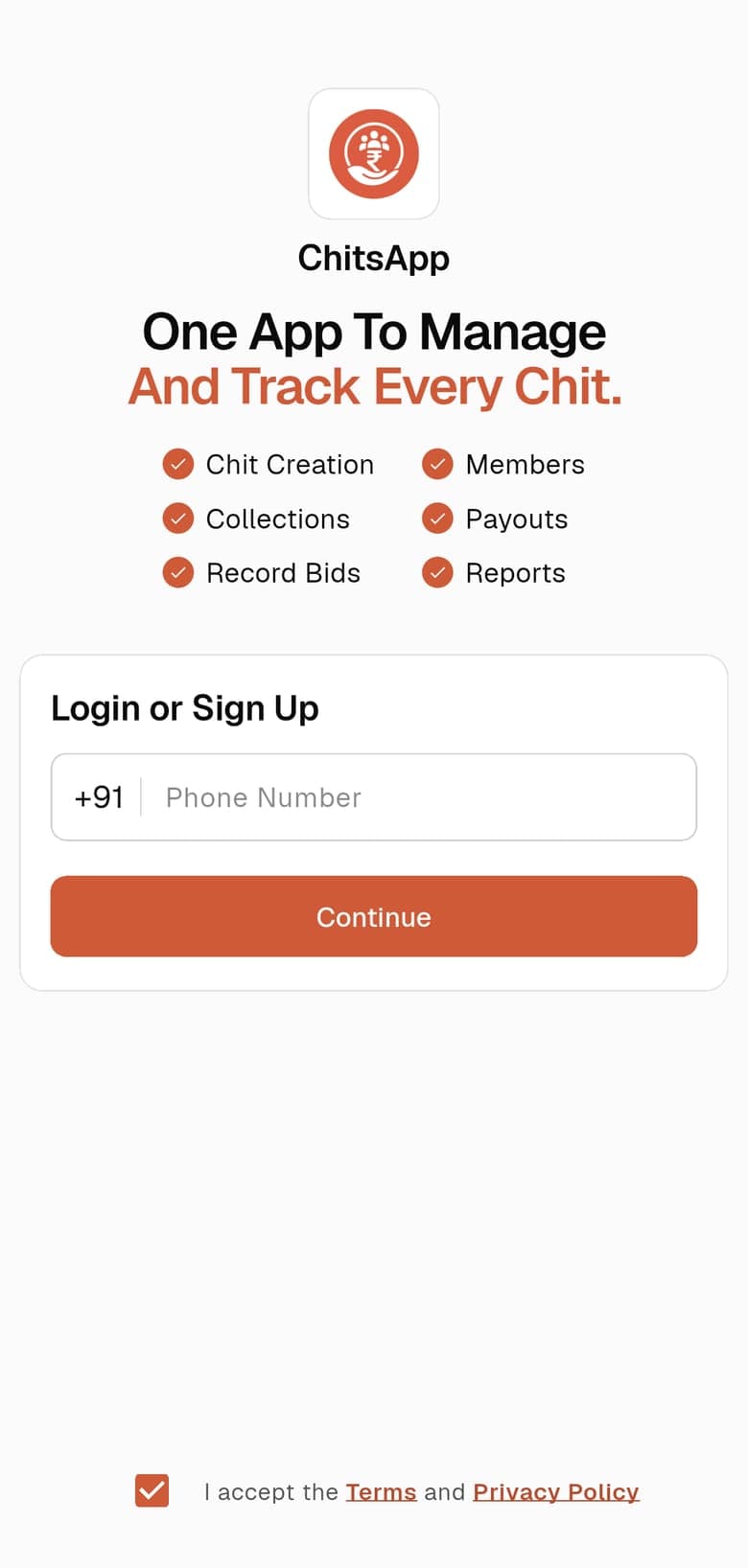
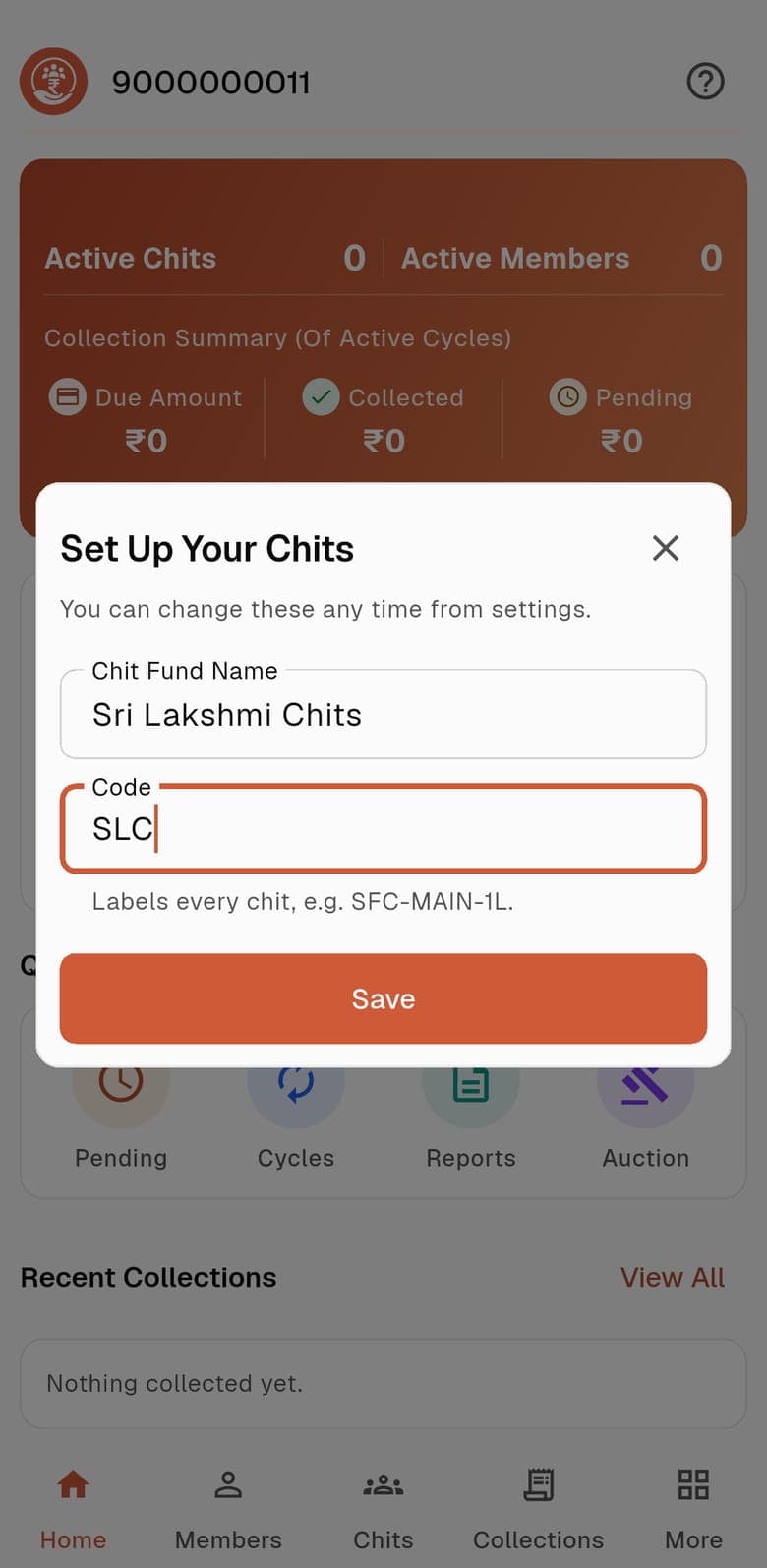
Sign in with your phone number. The first time, ChitsApp asks what to call your chit fund and for a short code.
- Chit Fund NameYour organisation’s name. It is shown on receipts and on the schedule you share with members.
- CodeA short code that labels every chit, such as SFC-MAIN-1L. Every new chit’s code starts with it.
- Change it laterThe sheet says you can change both any time from settings.
2. Home: where the month stands
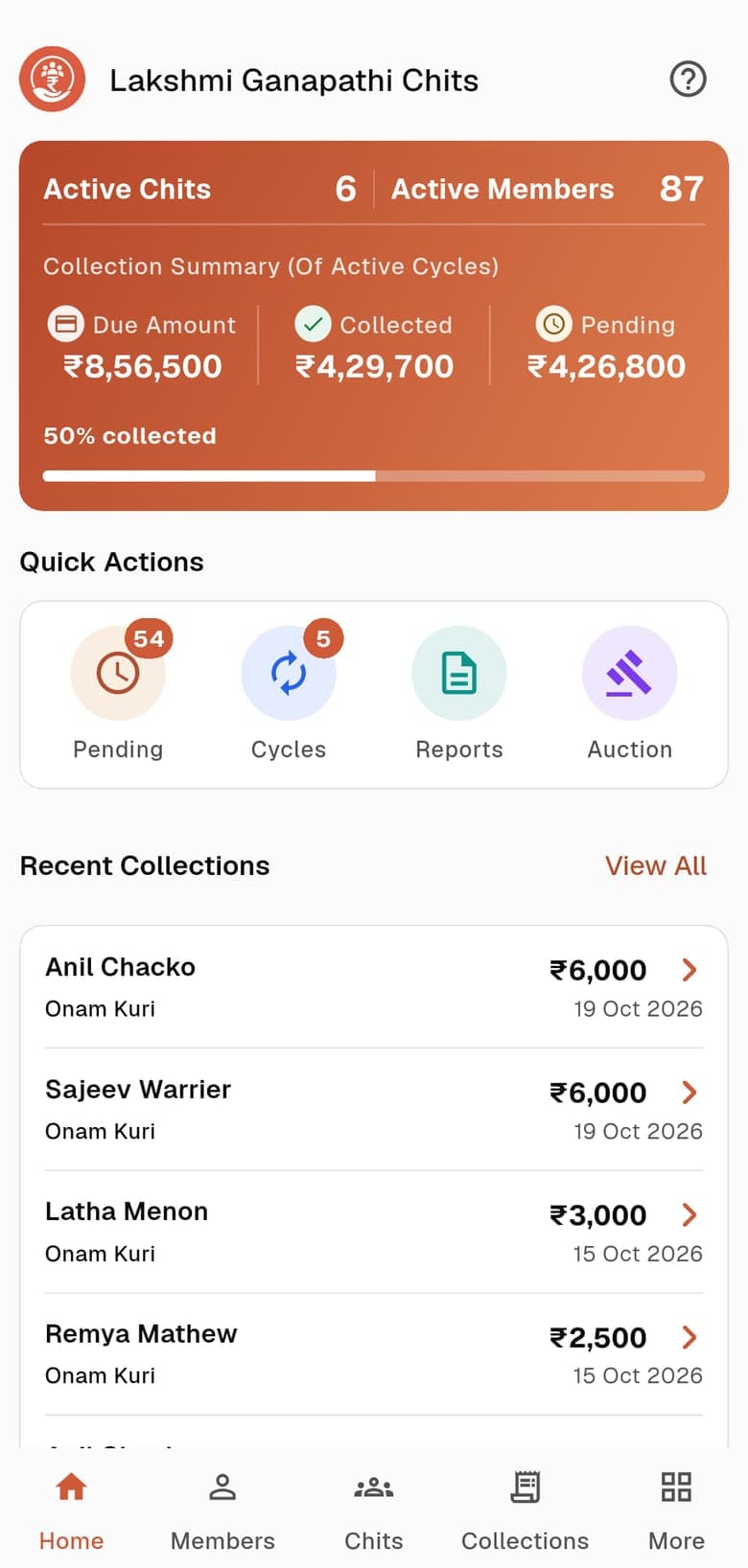
Home is the first thing you see. It answers one question: how much is due this month, and how much has come in?
- Active Chits and Active MembersThe number of chits you are running and the members in them.
- Collection Summary (Of Active Cycles)Due Amount, Collected and Pending across every running cycle, with the share collected as a bar.
- Quick ActionsPending, Cycles, Reports and Auction. The badge on Pending is the number of outstanding payments, and on Cycles the number of running cycles.
- Recent CollectionsThe last payments you recorded, with View All to open the full list.
3. Create a chit
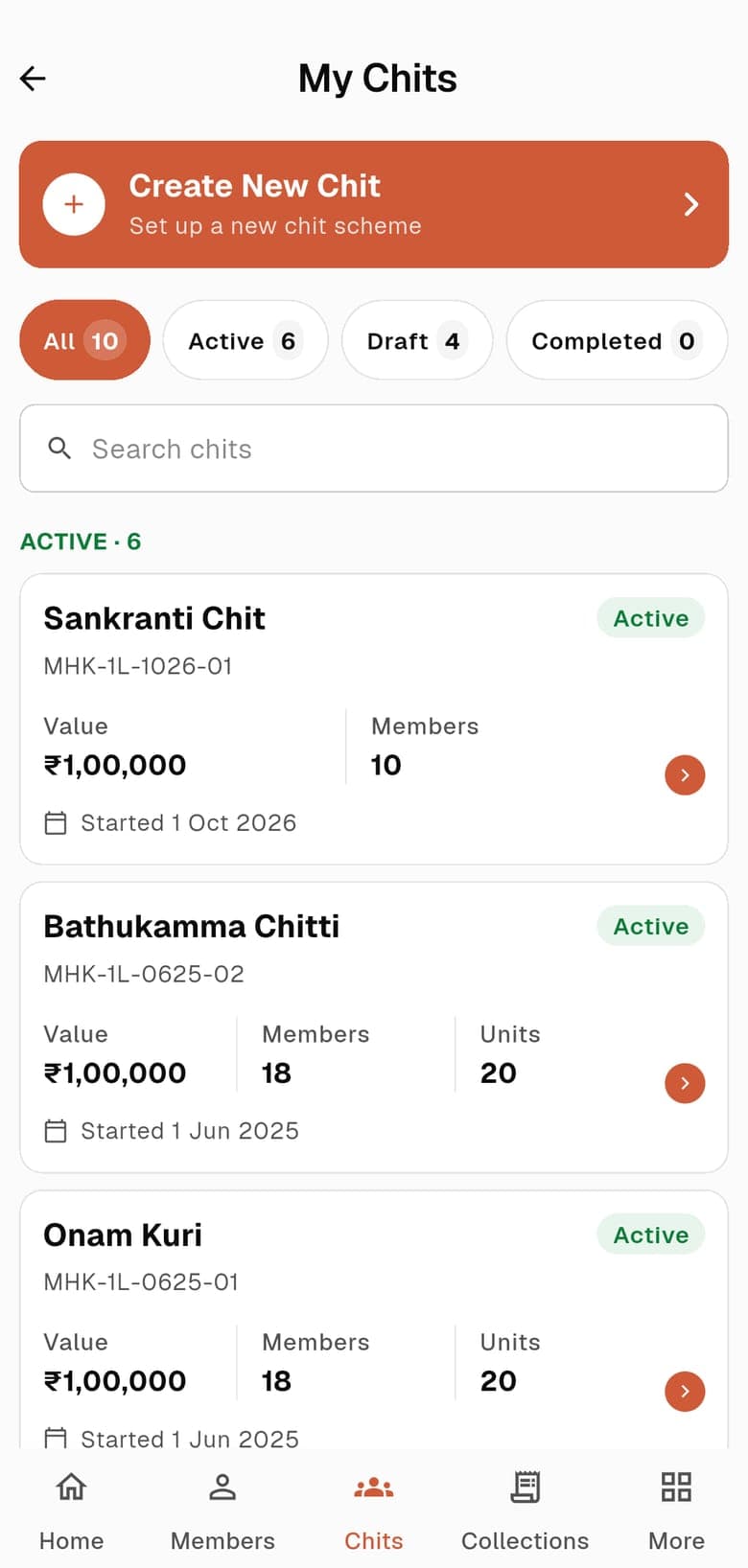
The Chits tab lists every chit you have, as drafts, active and completed. Create New Chit at the top starts the four-step create flow: Create, Preview, Members, Confirm.
- All, Active, Draft, CompletedFilters for the list. A draft is a chit you have created but not published; nothing is shared with anyone until you publish.
- Create New ChitPick one of six models, fill in its form, check the preview, add members, then publish. Each model has its own guide, linked below.
4. Members
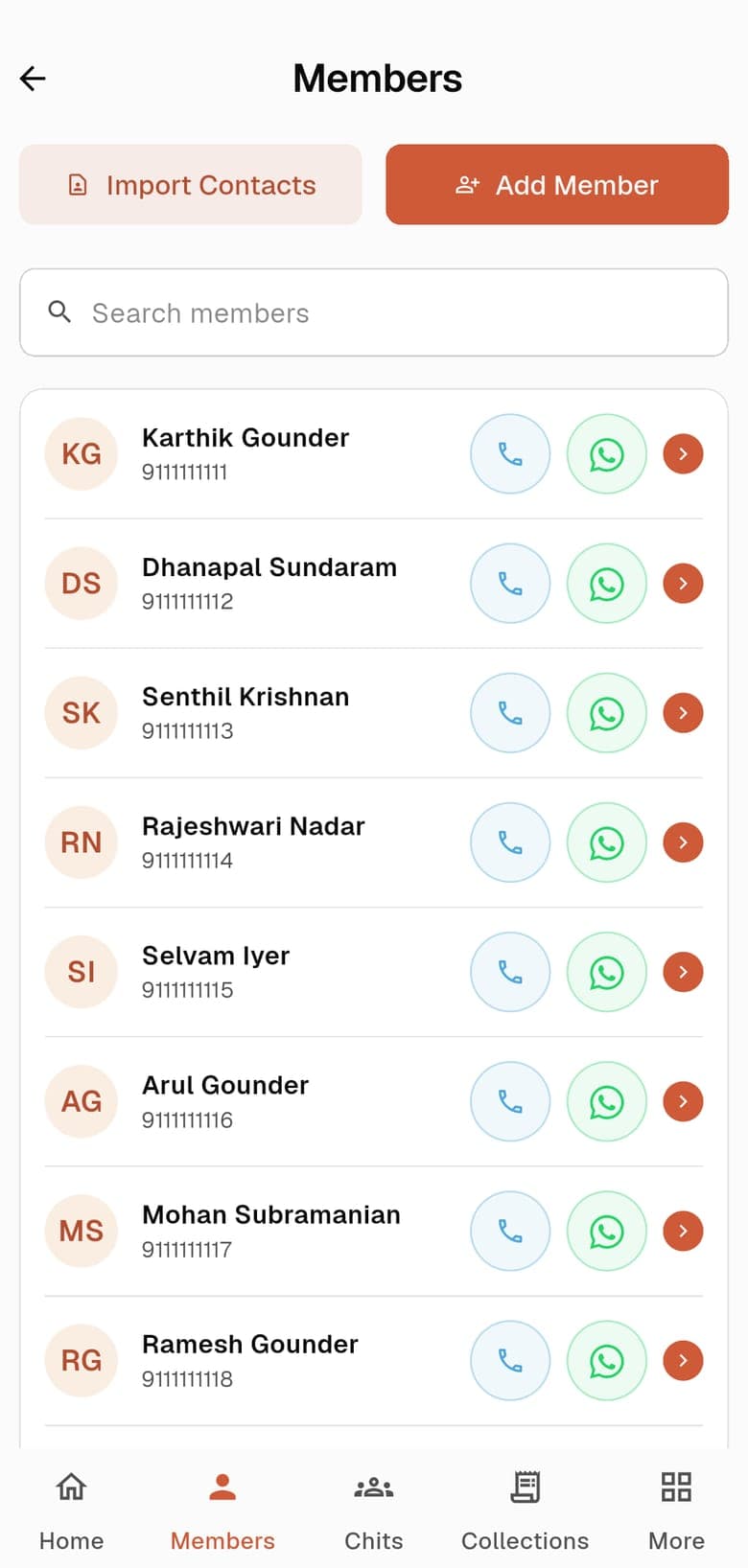
The Members tab is your address book across every chit. A member can be in several chits, with a different number of units in each.
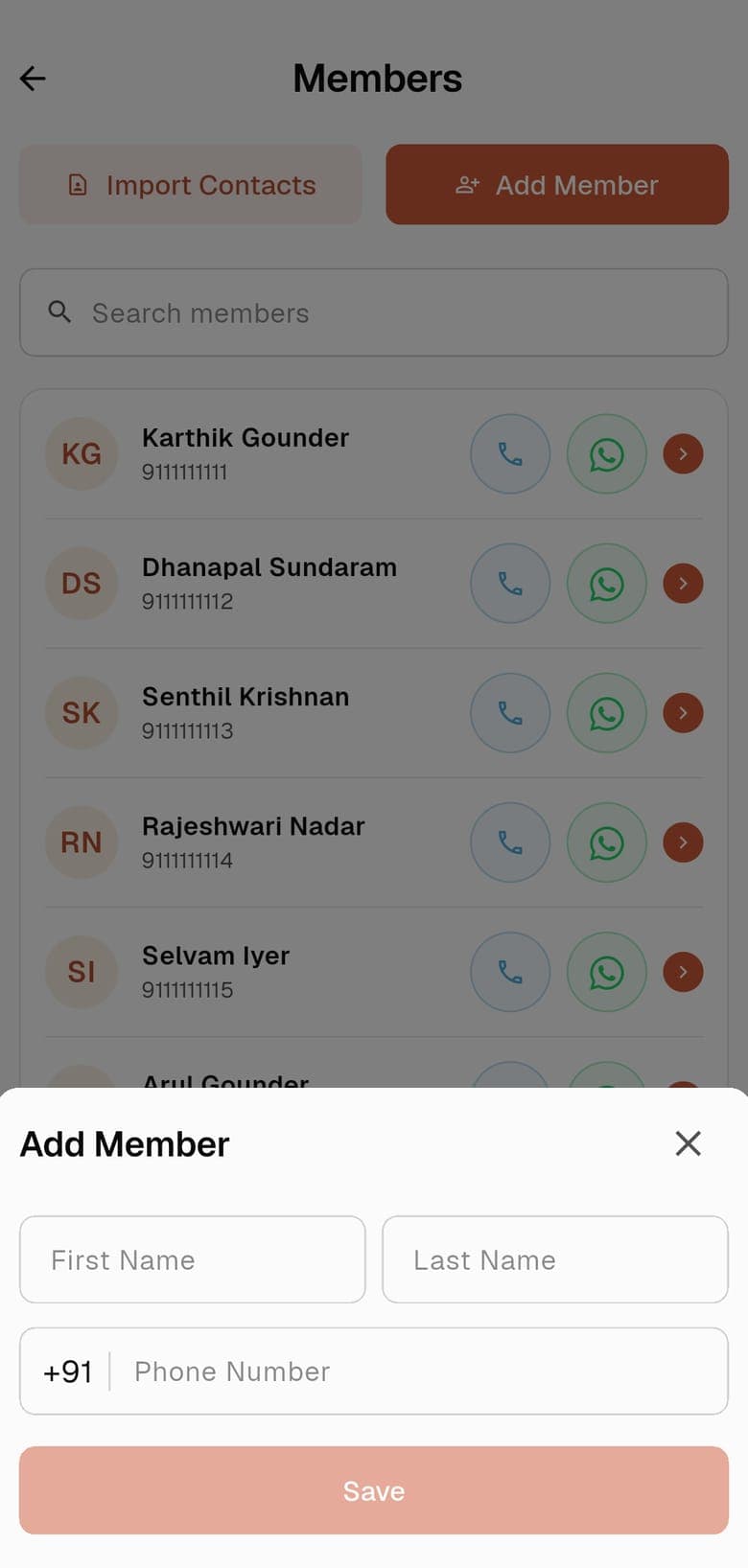
- Import Contacts and Add MemberBring people in from your phone’s contacts, or type a first name, last name and phone number.
- Call and WhatsAppEach row has a button to call the member or open a WhatsApp chat with them.
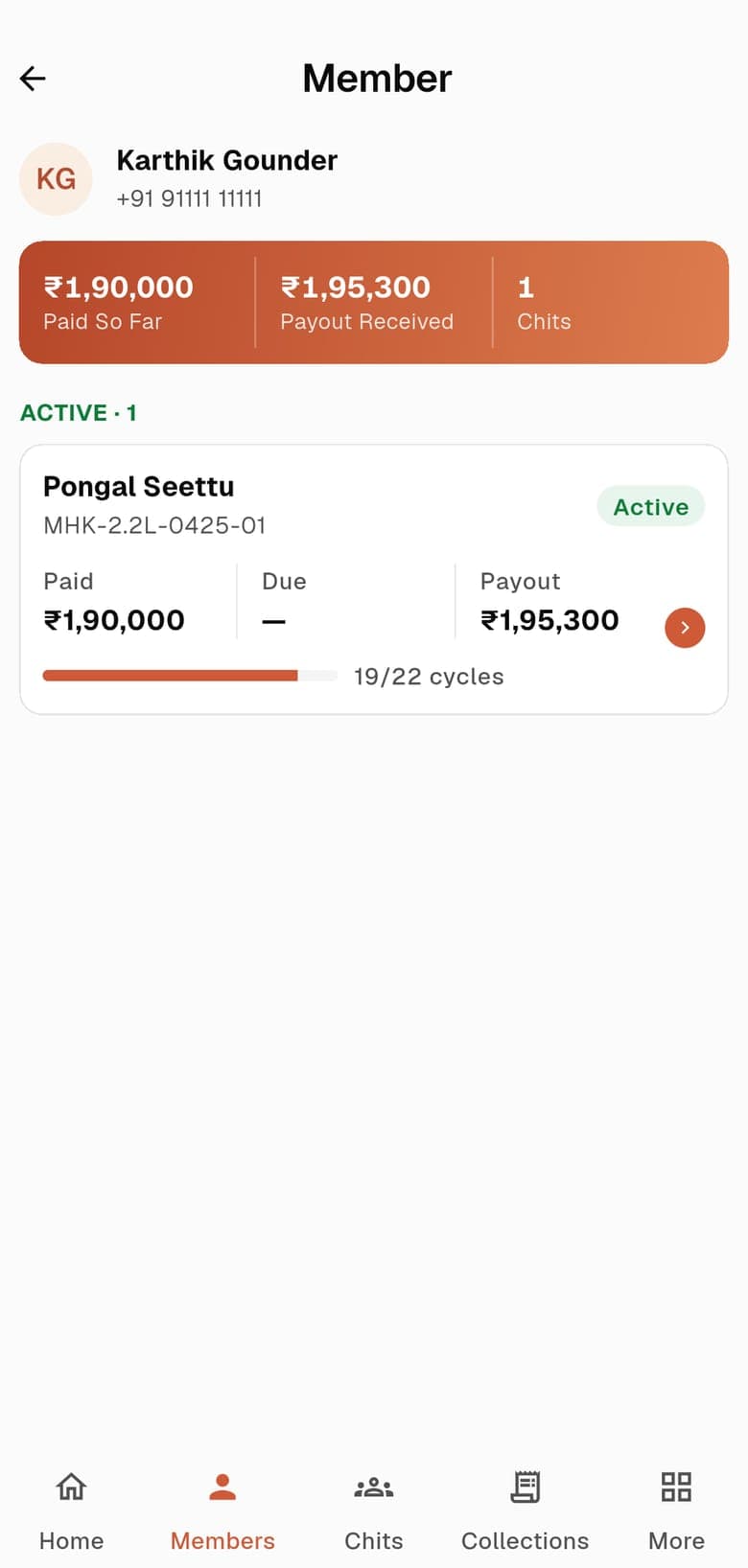
- A member’s pageTap a member to see what they have paid so far, the payouts they have received and the chits they are in, with paid, due and payout for each.
5. The chit screen in depth
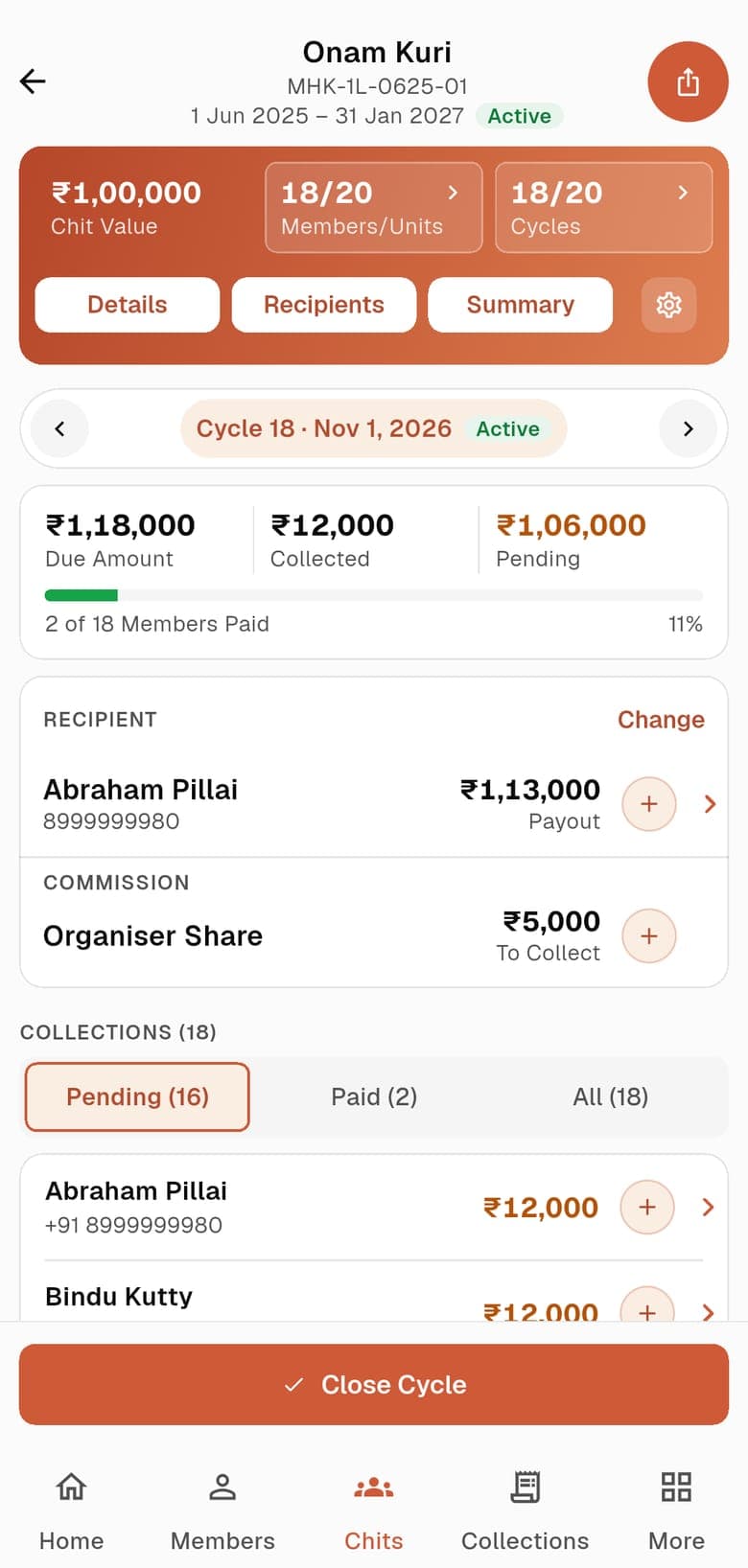
Open a chit from the Chits tab. This one screen holds the whole chit: its terms, the cycle you are working on, and every payment.
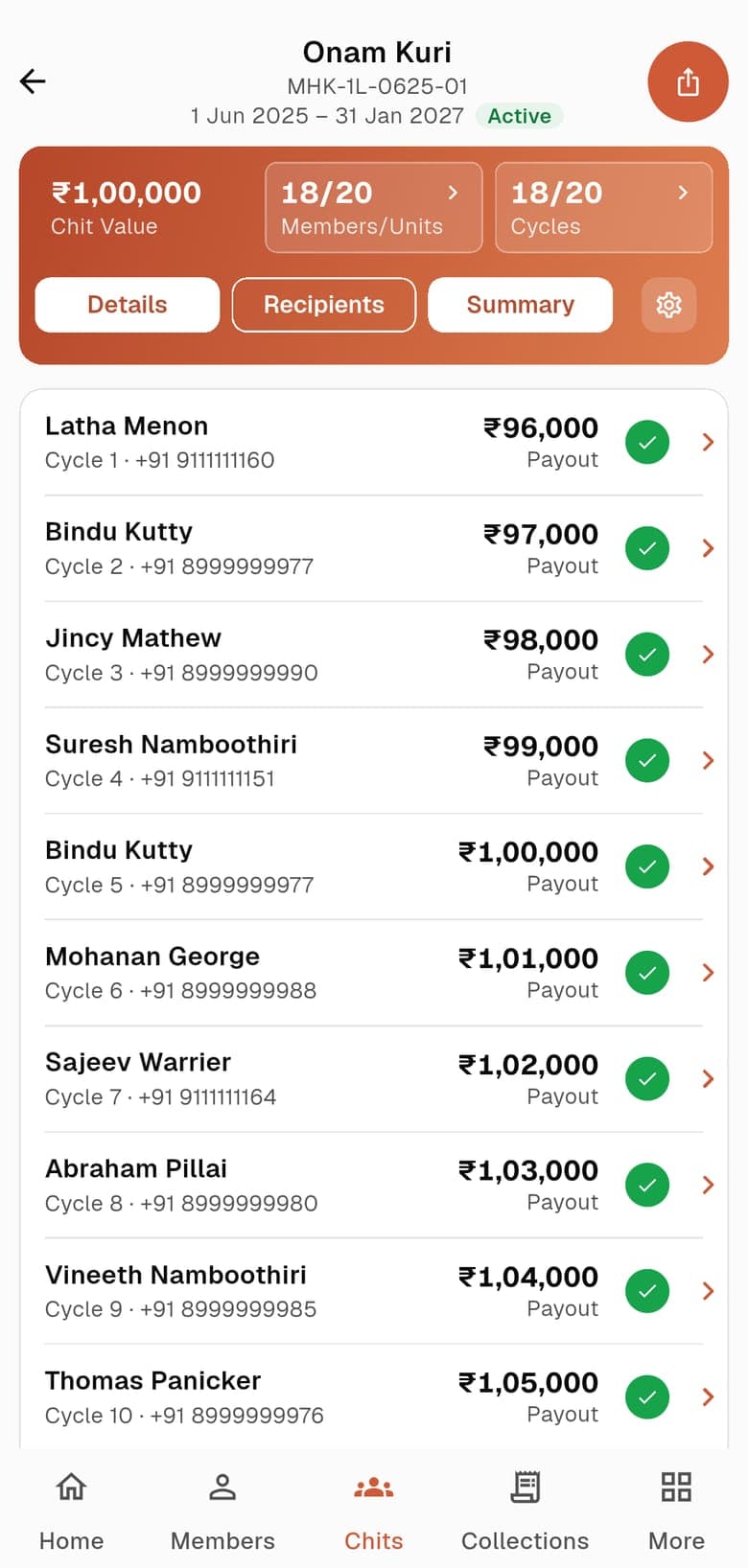
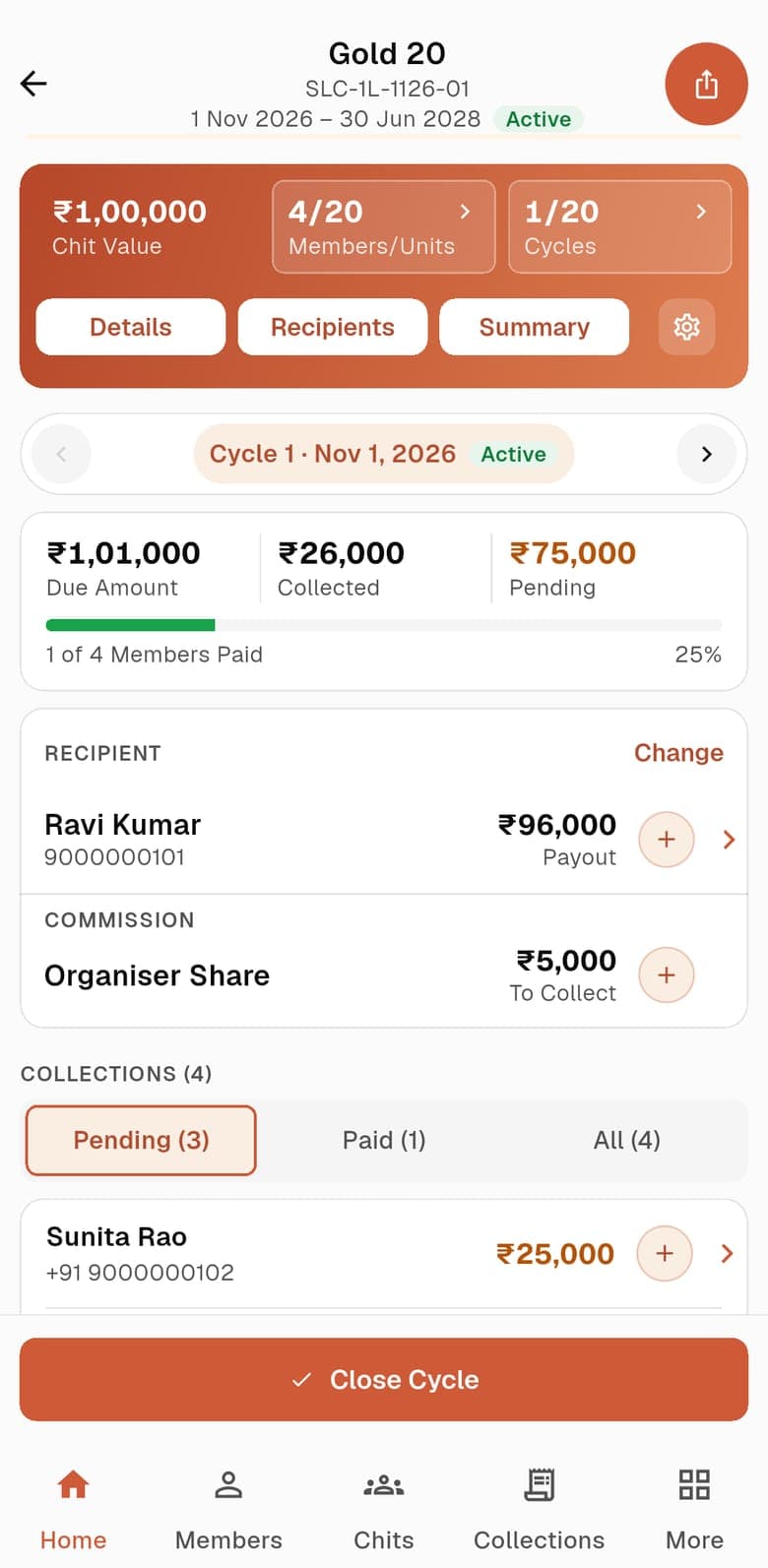
- HeaderThe chit’s name, its code, its first and last month and its status. The round button at the top right shares the schedule with members.
- Members/Units and CyclesHow many of the chit’s members and units are filled, and how many cycles there are.
- DetailsThe chit’s terms: the model, the chit value, the months, the commission and the settings for that model, plus the schedule sheet and an activity log.
- RecipientsEvery cycle with the member who received that month’s payout and the amount, once assigned.
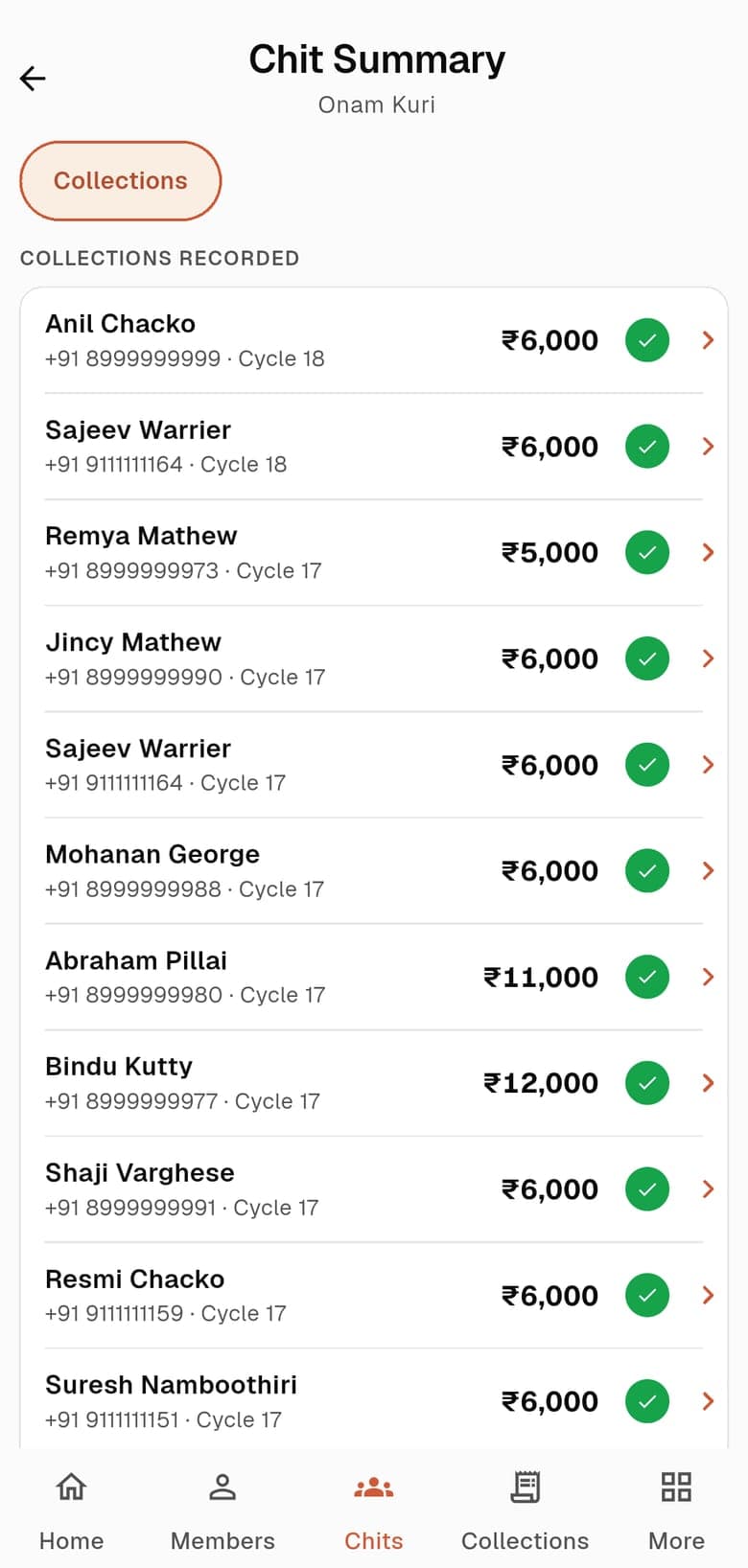
- SummaryEvery collection recorded on the chit, with the member, the cycle and the amount.
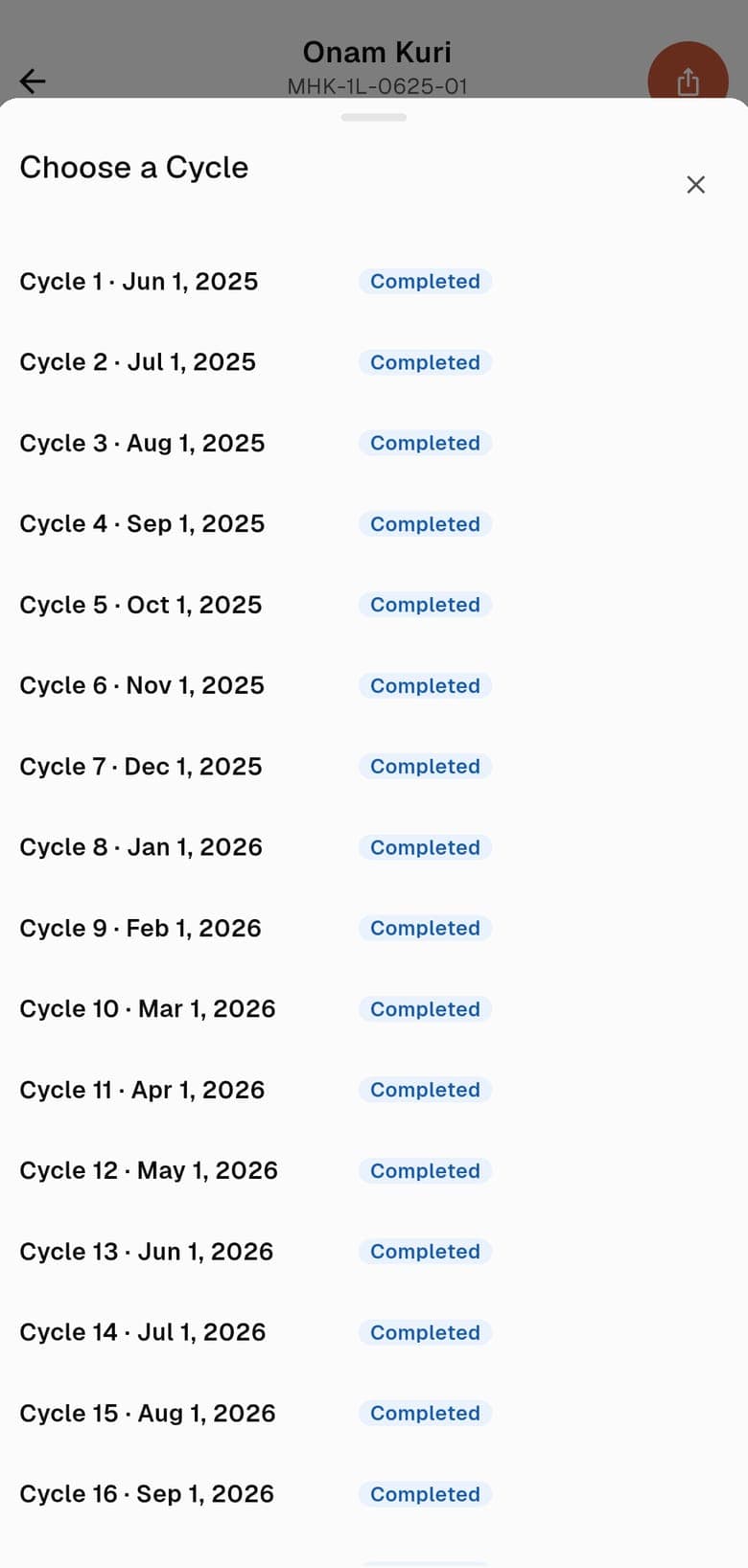
- Cycle barMove between cycles with the arrows, or tap the middle to choose any cycle from the list. Each shows whether it is scheduled, active or completed.
- Due Amount, Collected, PendingThe money for the cycle you are on, with how many members have paid.
- Recipient and Organiser ShareWho receives this month’s payout and how much, and your commission for the month. Change swaps the recipient, and the plus buttons record the payout or commission.
- CollectionsOne row per member who owes this month. Pending, Paid and All filter them, and the plus on a row records a payment.
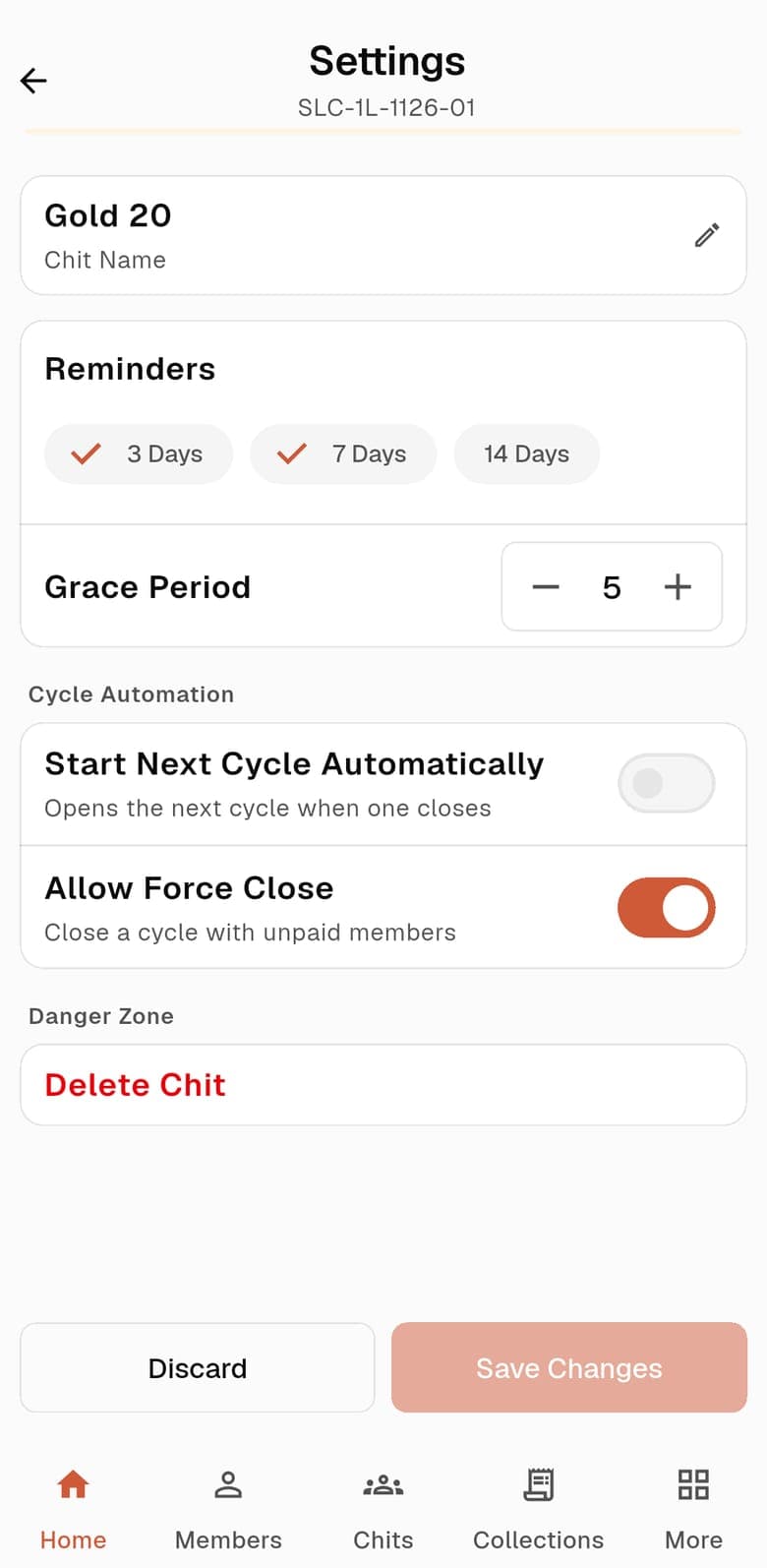
- Settings (the gear)The chit’s name, a grace period, whether the next cycle starts on its own, whether a cycle may be closed with dues outstanding, and Delete Chit.
6. Pending payments and active cycles
Two shortcuts on Home save you opening each chit to find what is owed.
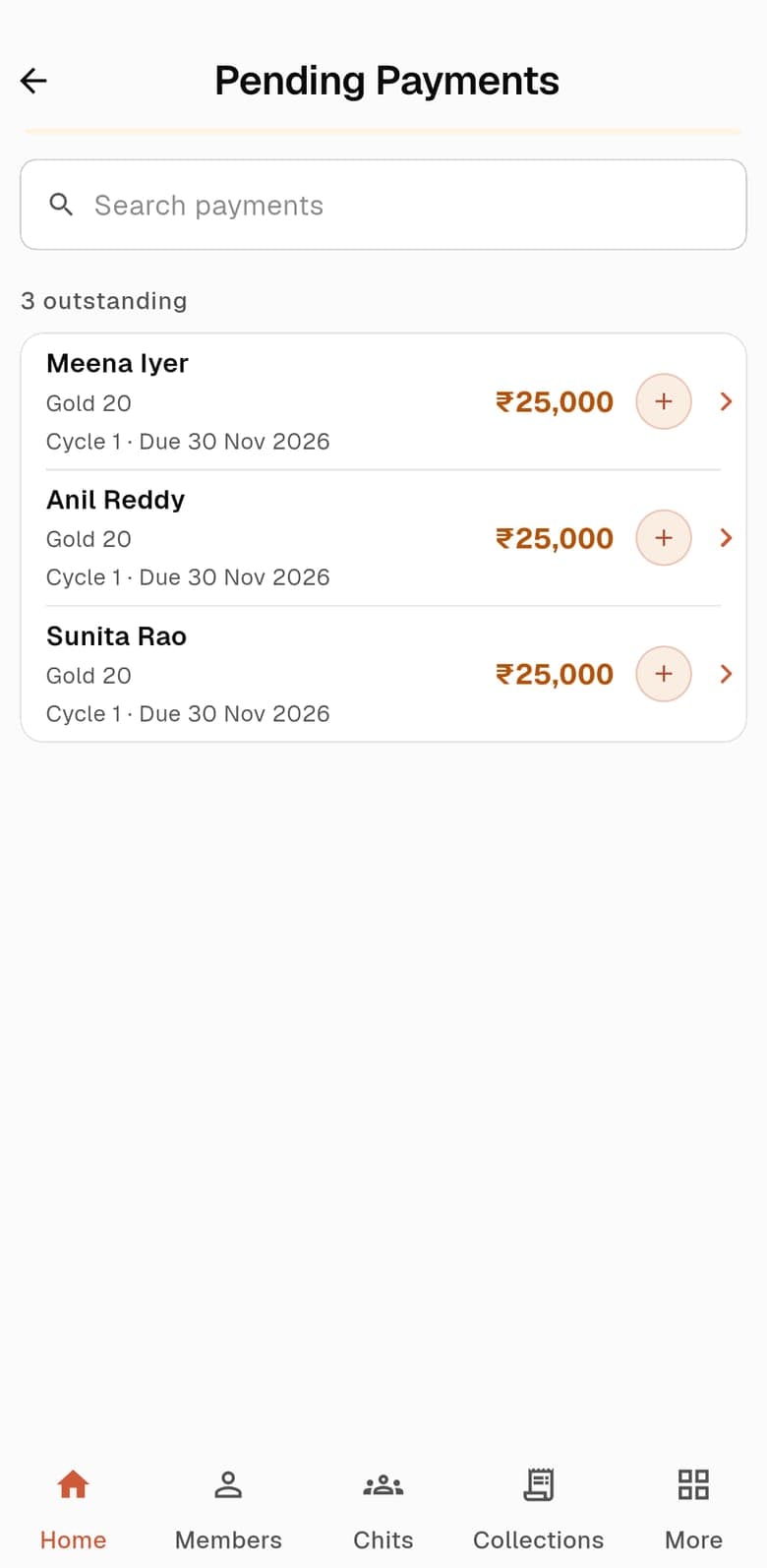
- Pending PaymentsEvery outstanding payment across your chits, by member, with the chit, the cycle, the due date and the amount. Search by member, and tap the plus to record the payment.
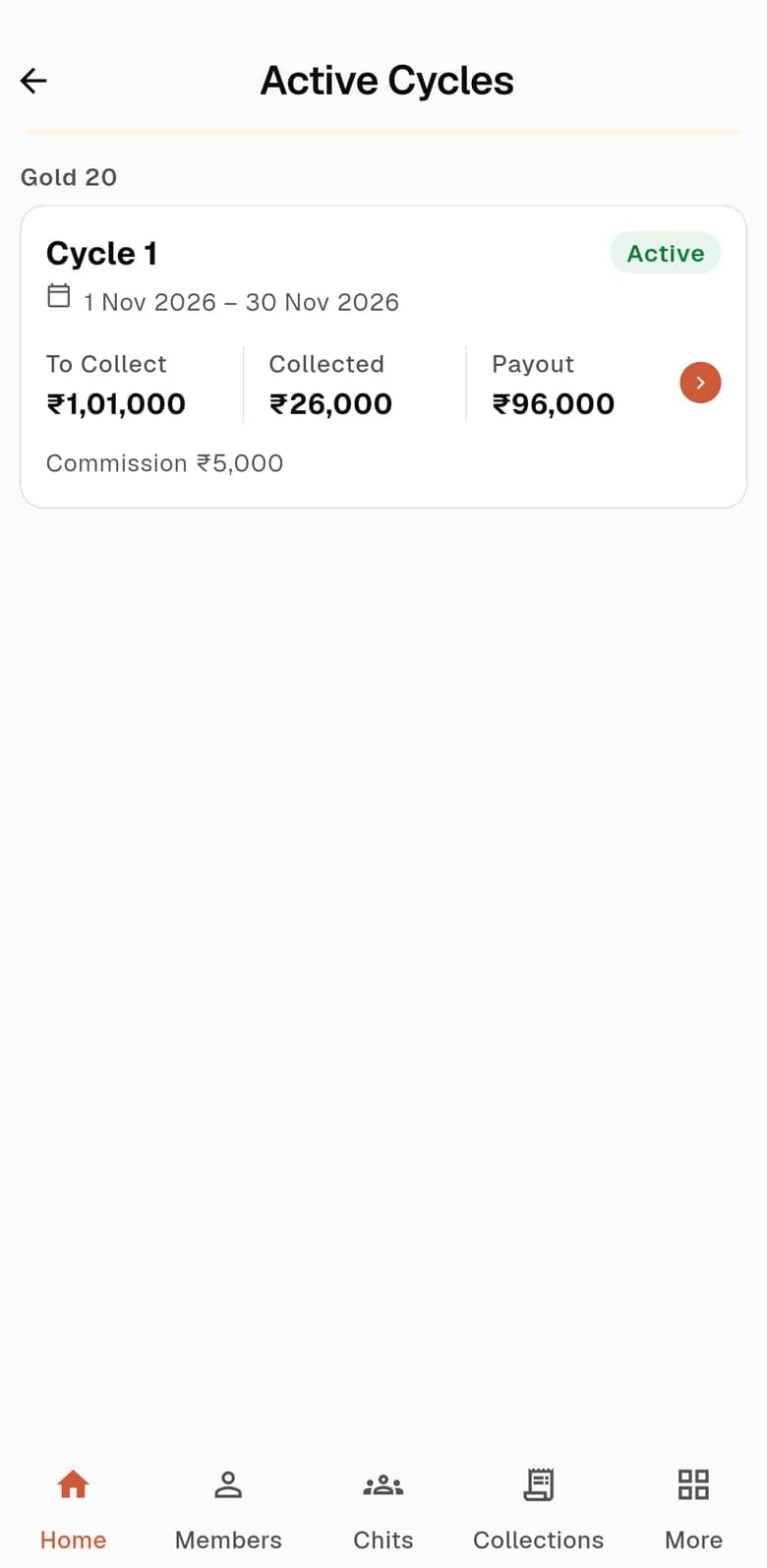
- Active CyclesEach running cycle with what is to be collected, what has been collected and the payout.
7. Collect a payment, and the receipt
ChitsApp records payments; it does not take them. When a member pays you, you record it, and the receipt is made for you.
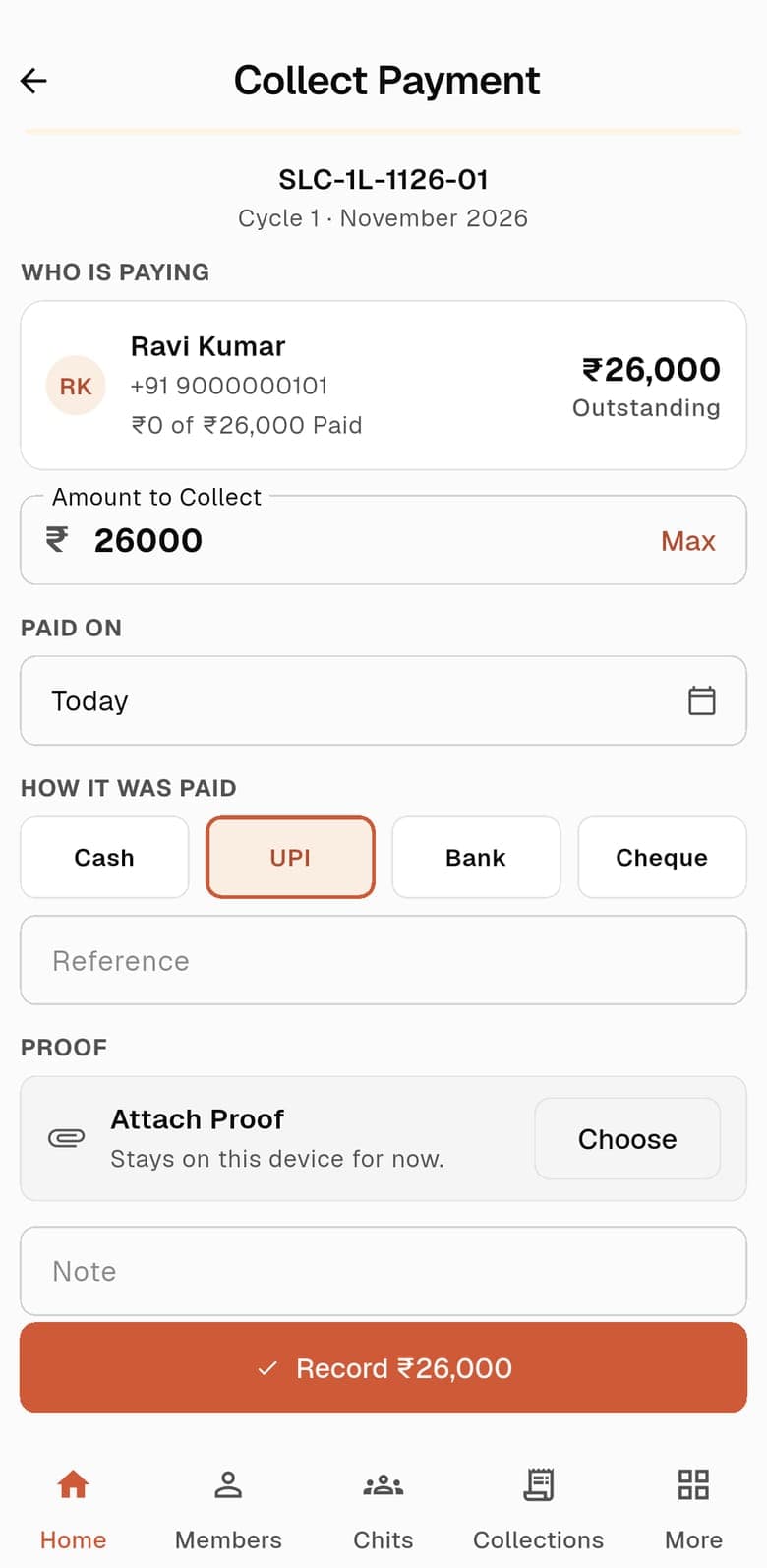
- Collect PaymentShows who is paying and what is outstanding. Enter the amount (Max fills what is due), the date, how they paid (Cash, UPI, Bank or Cheque), an optional reference and a note, then Record.
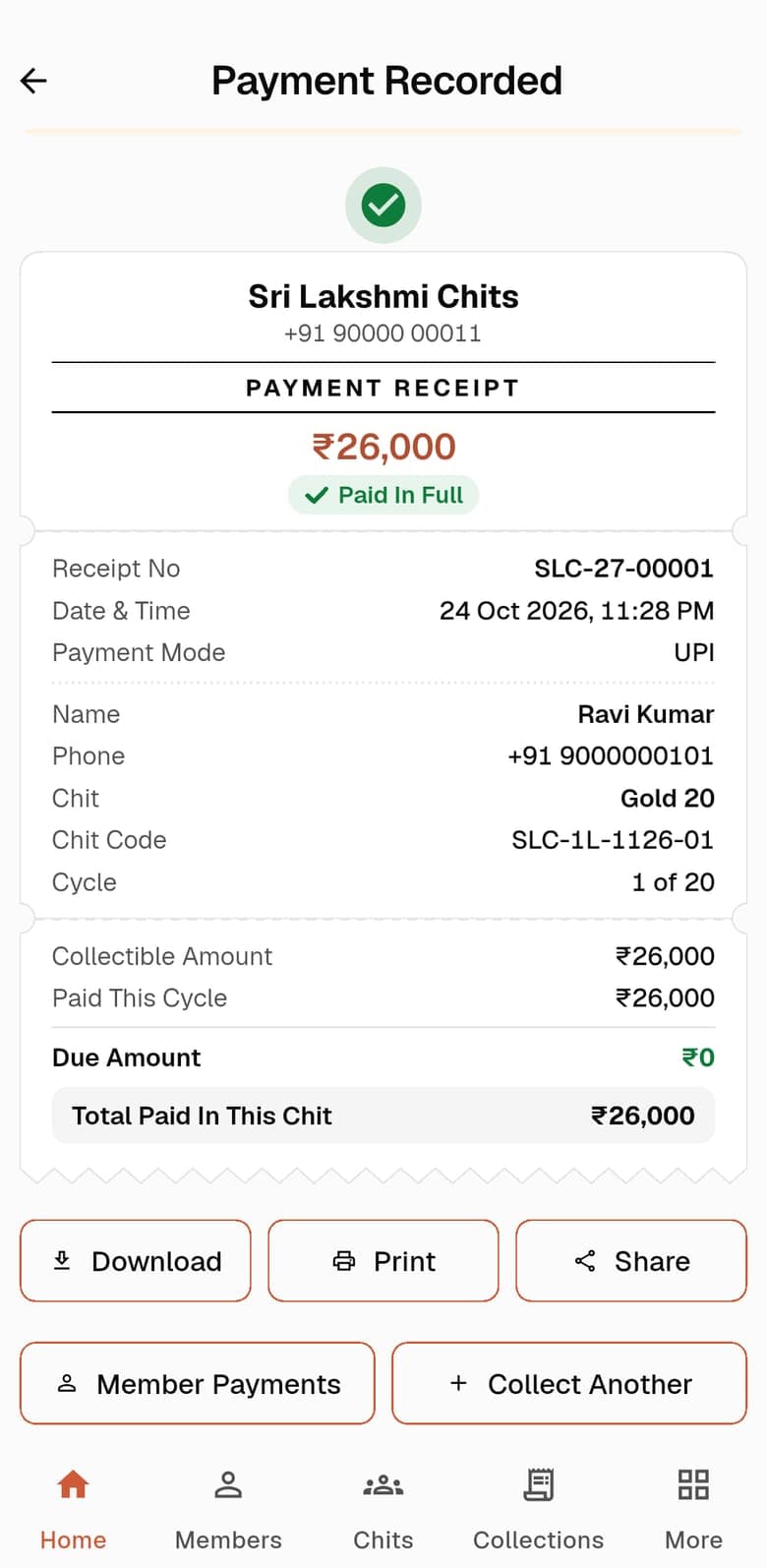
- ReceiptShows the receipt number, date and time, mode, the member, the chit and cycle, what was due, what has been paid and the total paid in the chit. Download, Print and Share are at the bottom.
- Void This PaymentA payment recorded by mistake can be voided from its receipt. The Collections list marks it as reversed.
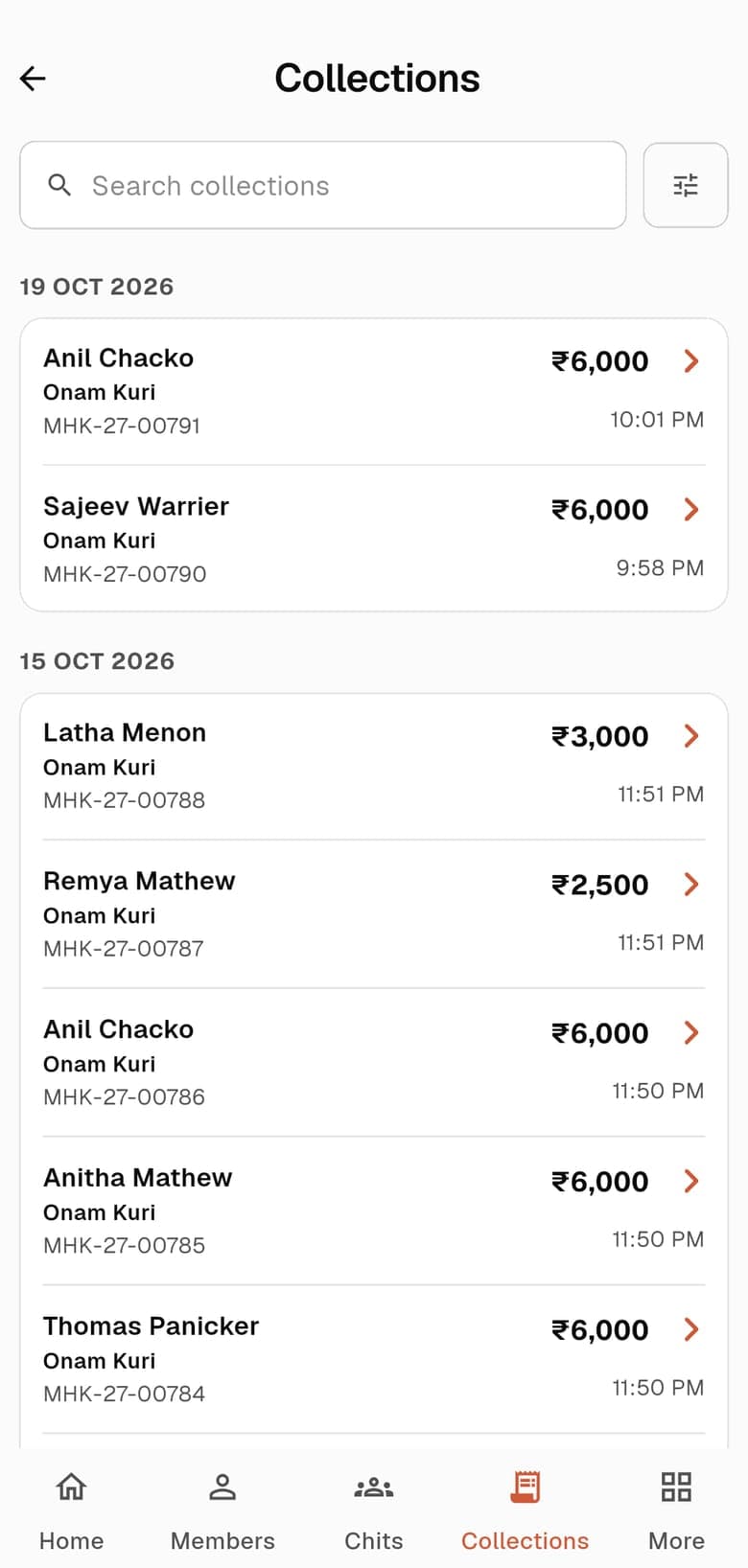
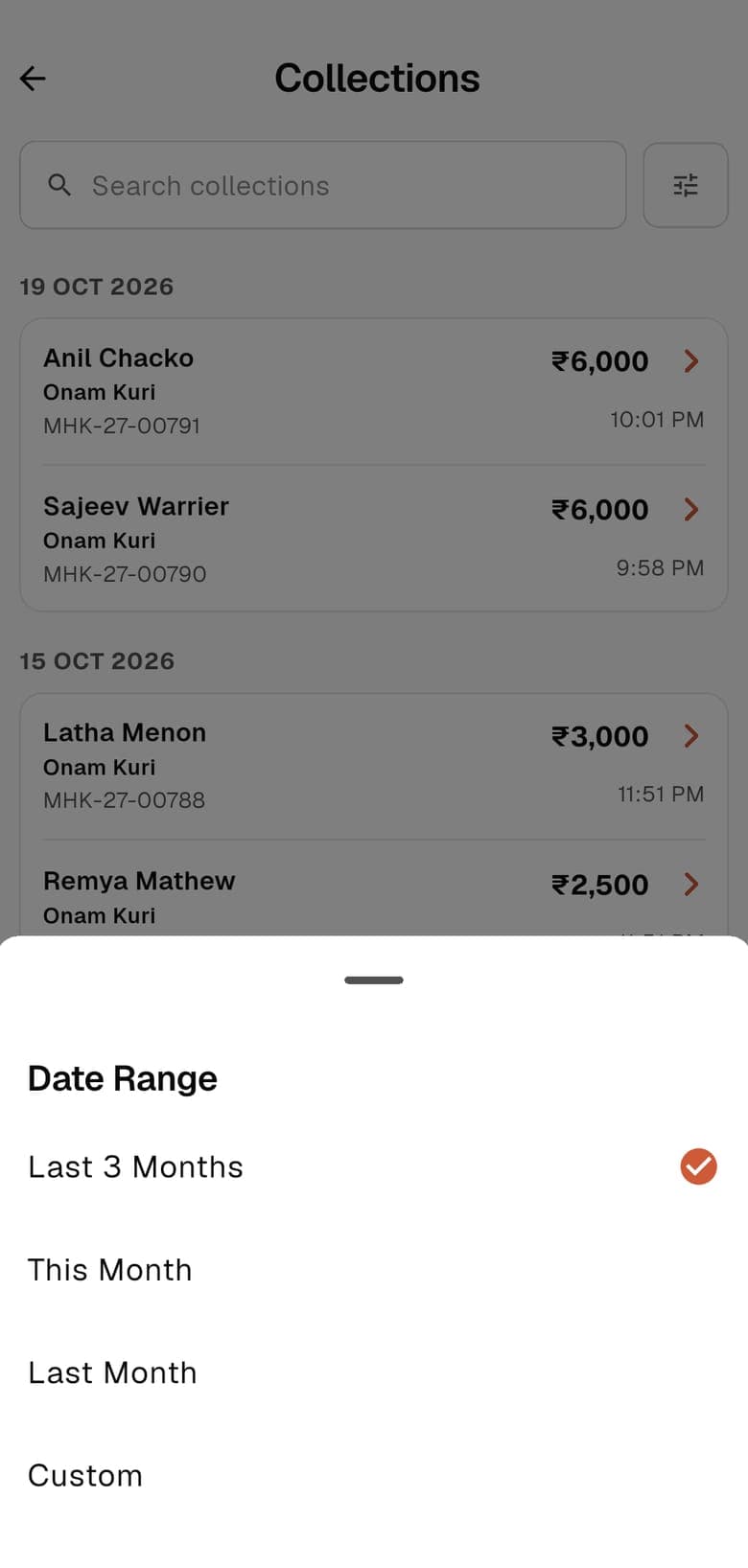
- Collections tabEvery payment you have recorded, grouped by date, with search. The filter button sets the date range: Last 3 Months, This Month, Last Month or Custom.
8. Closing a cycle
A cycle ends when you close it. Closing is always your decision: ChitsApp does not close a month on its own.
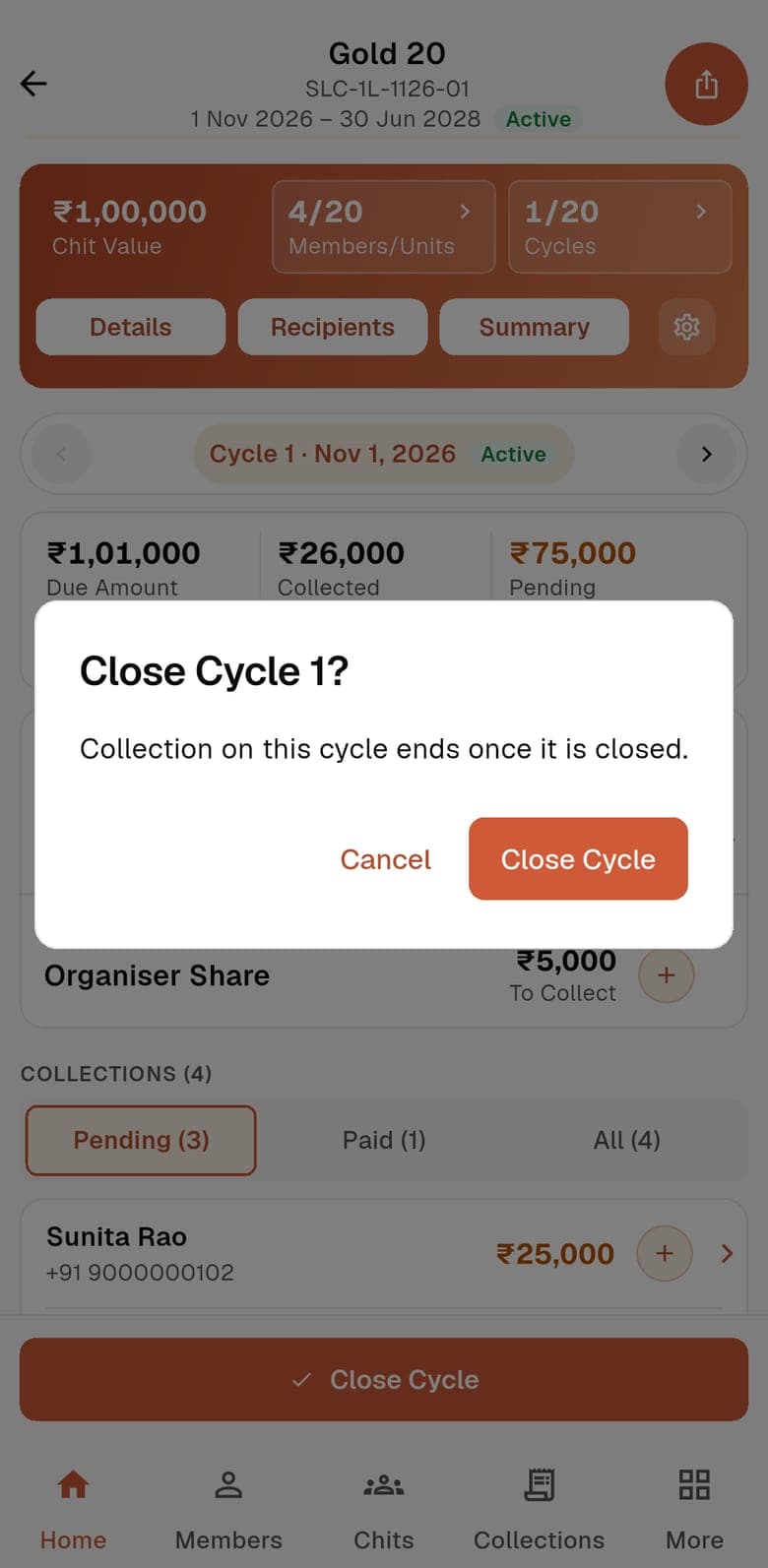
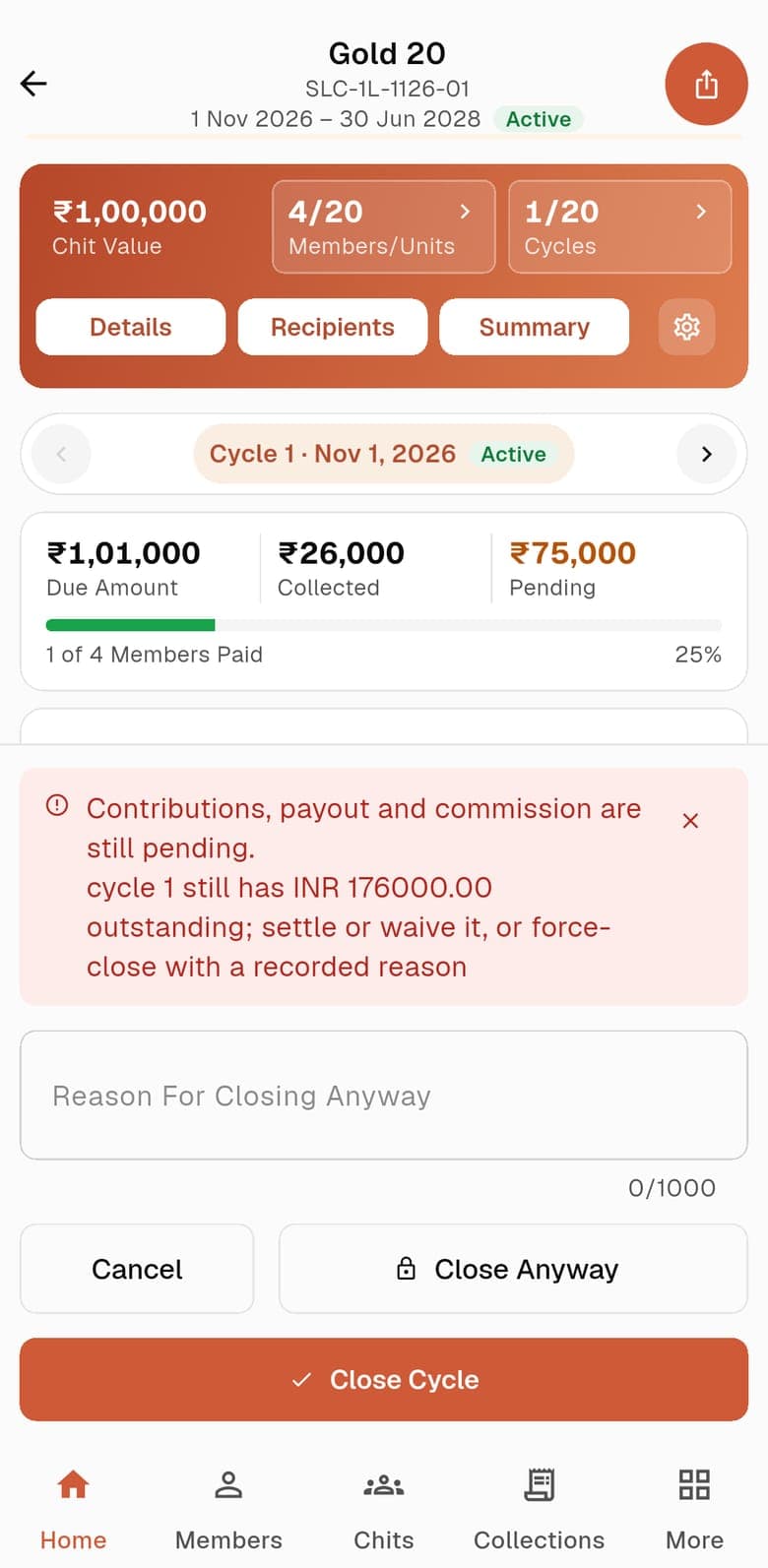
- Close CycleThe button at the bottom of the chit screen. It asks you to confirm, and says that collection on the cycle ends once it is closed.
- Close AnywayIf dues, the payout or the commission are still pending, the close is refused and the app shows what is outstanding. If the chit allows it, you can close anyway with a reason, which is recorded.
Open the month
Needs a recipient, and the previous month closed. Opening creates every member's due, the payout and the commission.
Record payments
In full or in part. A payment cannot exceed what is due. A due can be waived, with a reason.
Close
Allowed when every due, the payout and the commission are paid or waived. If any is still pending, the close is refused.
Close anyway
Only if the chit allows it (a setting, on by default), and only with a written reason. Unpaid dues stay recorded as pending against that month. Nothing is marked paid and no payout is settled for you.
9. Auctions
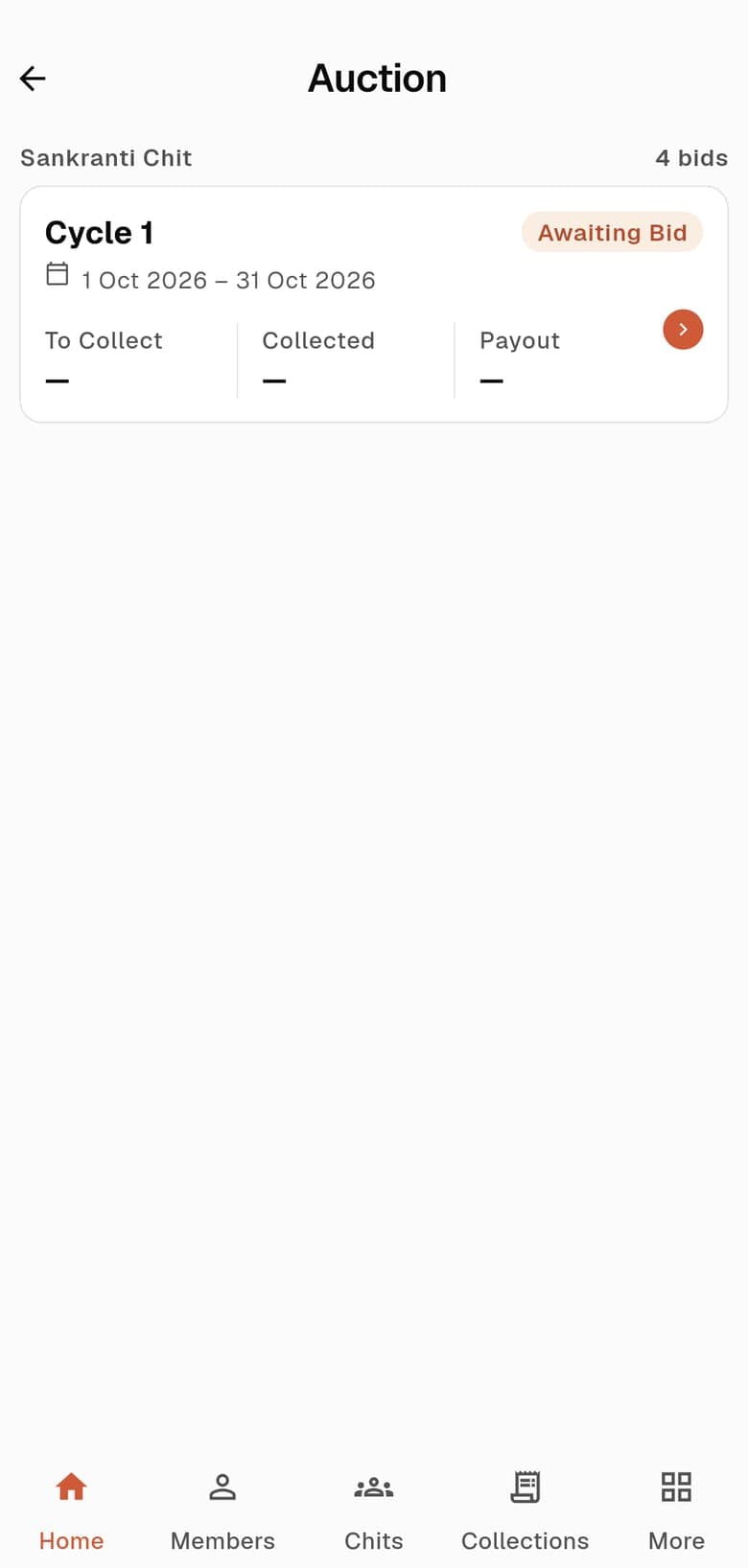
In an Auction Dividend chit, each cycle waits for a bid before it has any amounts. Home’s Auction shortcut lists the cycles that are waiting.
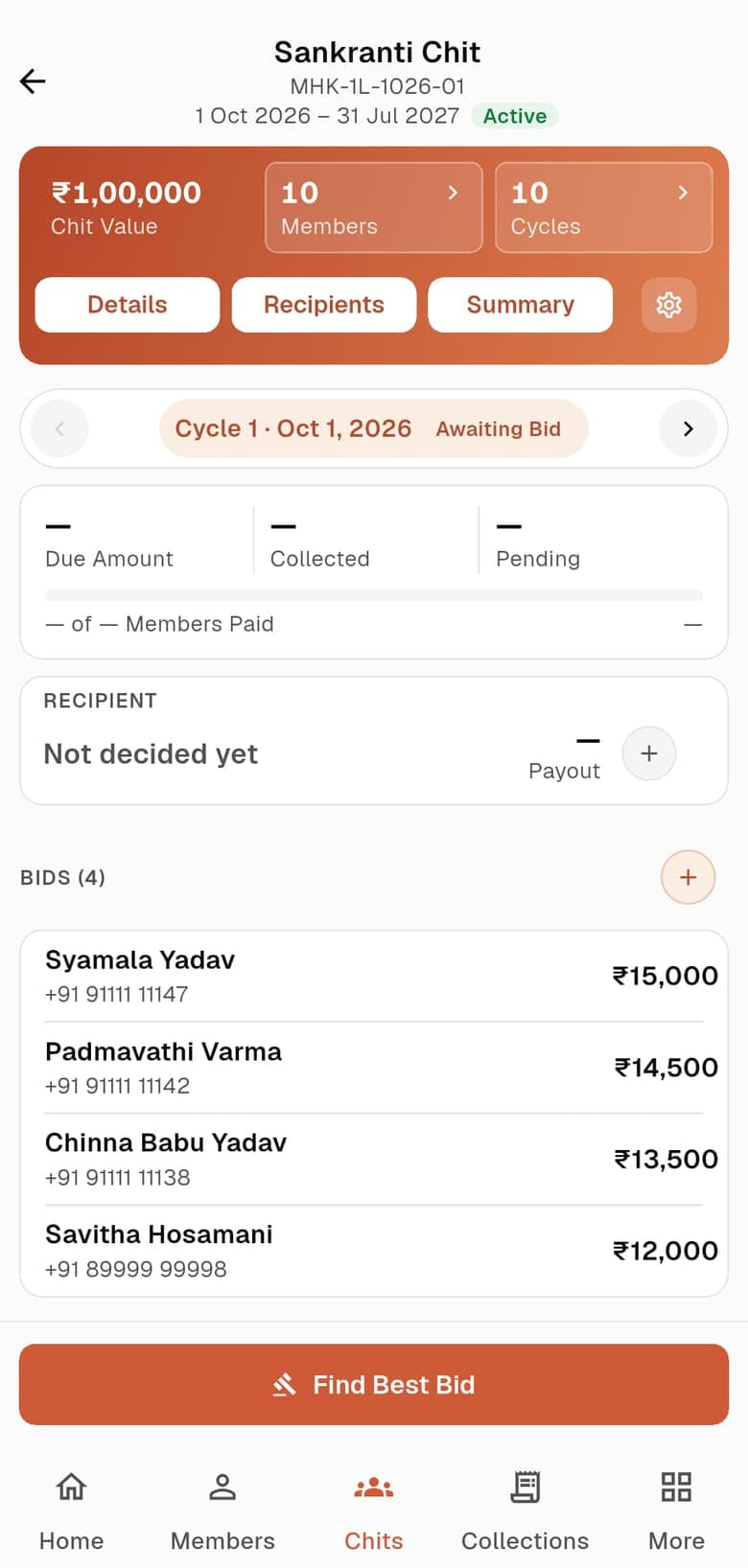
- Awaiting BidA cycle with no recipient yet. Record A Bid adds what a member calls out.
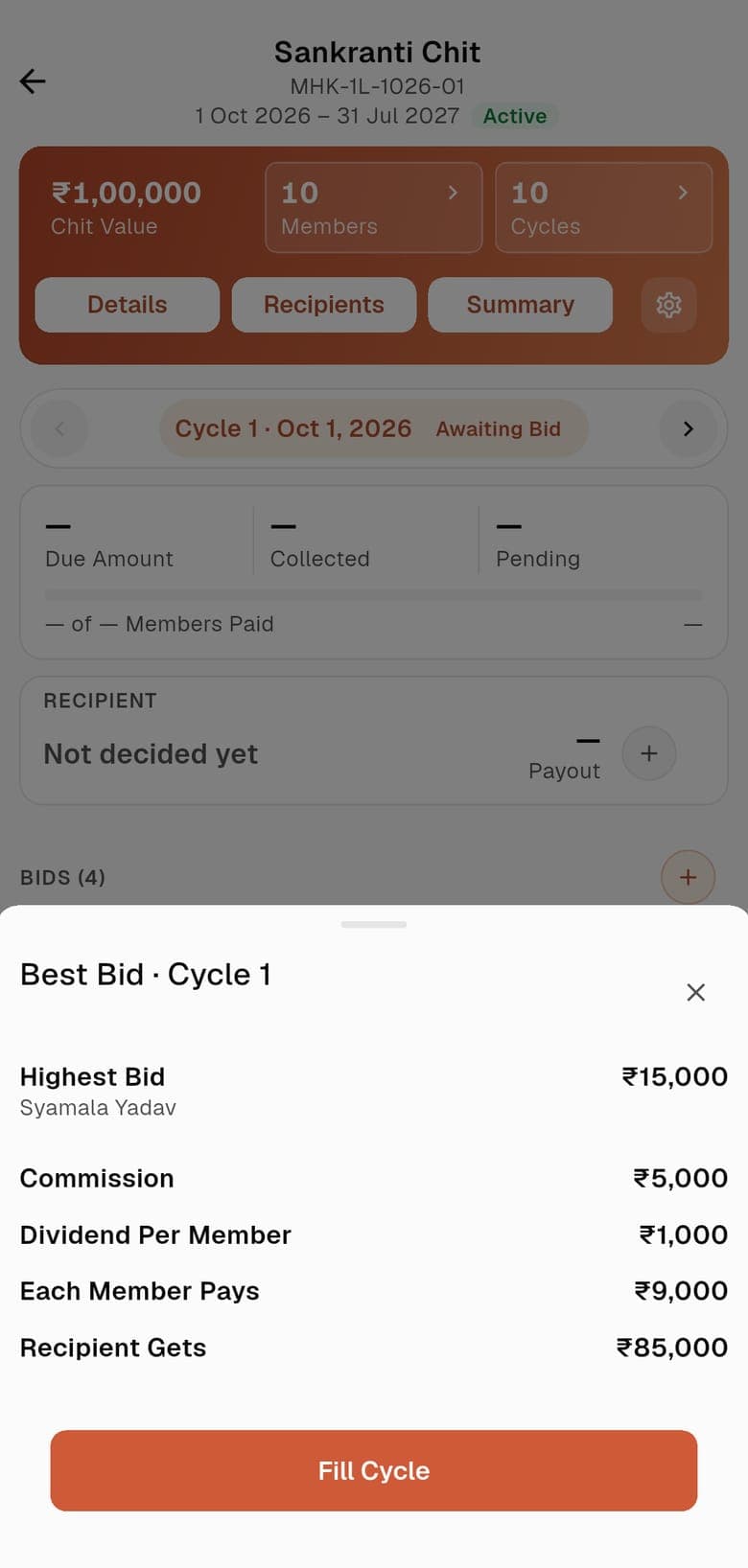
- Find Best BidShows the highest bid and what it works out to: commission, dividend per member, what each member pays and what the recipient gets.
- Fill CycleMakes the winner the recipient and sets the cycle’s amounts from their bid.
10. Reports
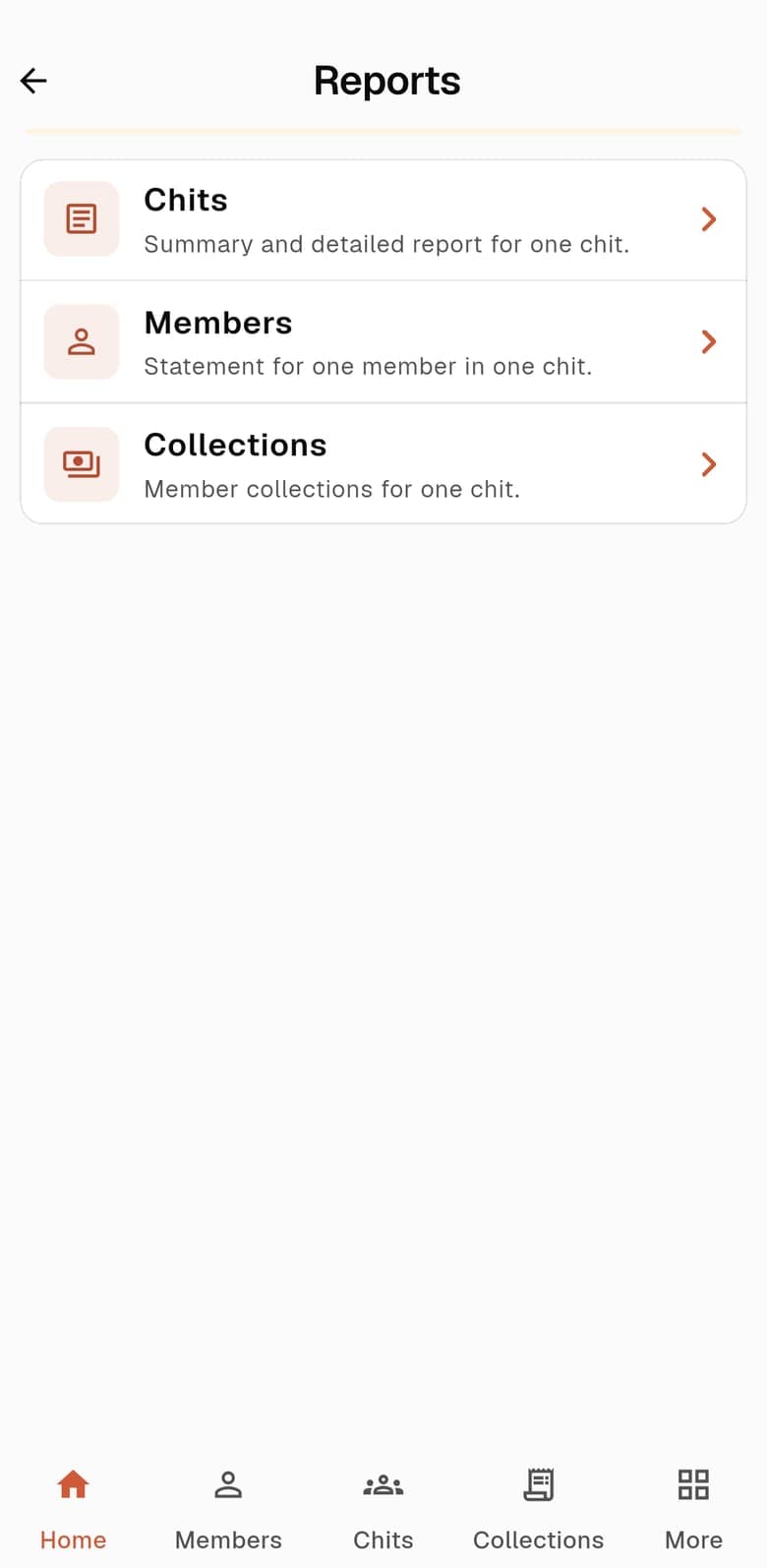
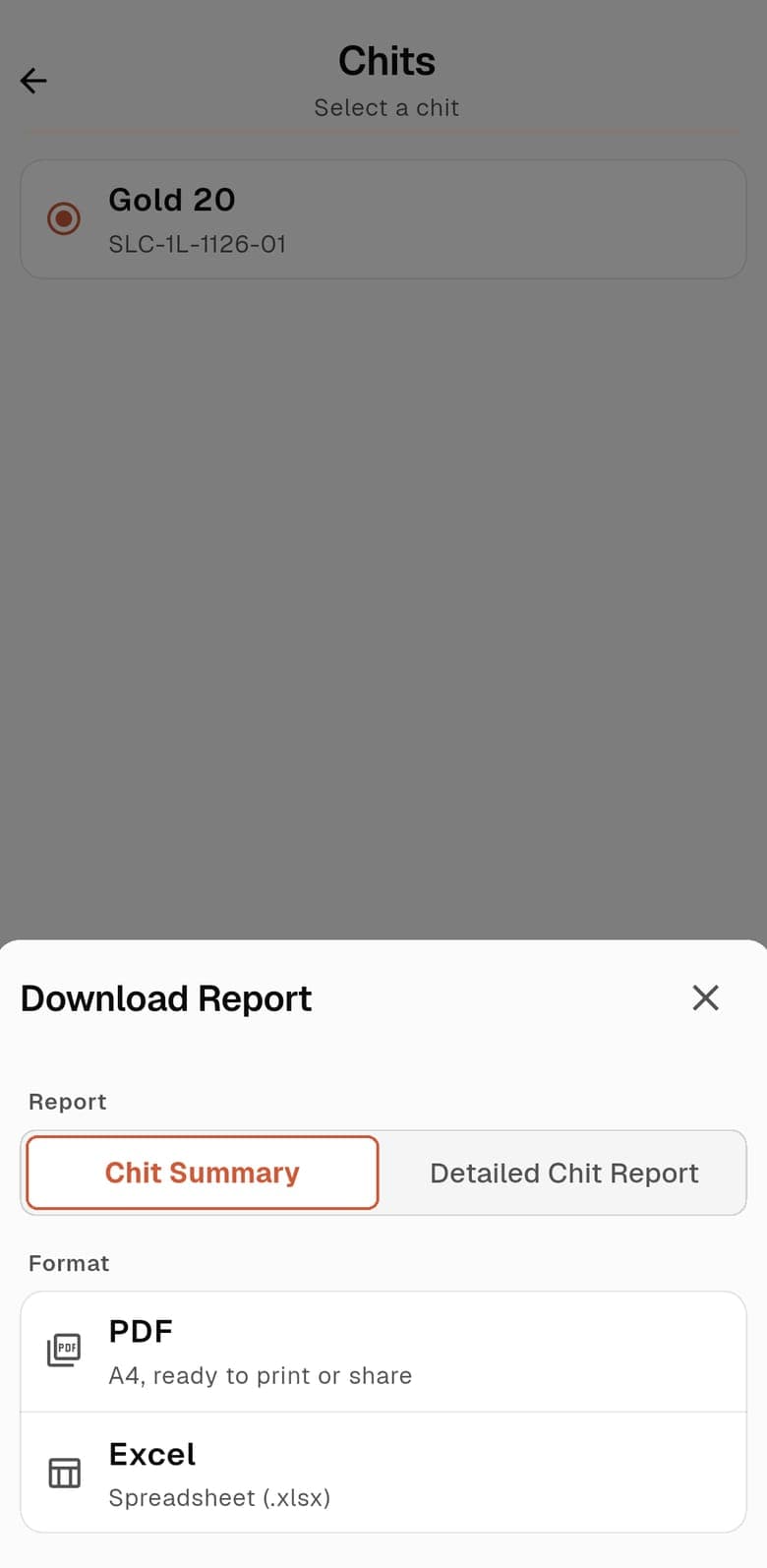
Reports opens from Home. Pick a report, choose a format and download it.
- ChitsA summary and a detailed report for one chit.
- MembersA statement for one member in one chit.
- CollectionsThe collections recorded for one chit.
- PDF or ExcelPDF is A4, ready to print or share. Excel is a spreadsheet (.xlsx).
Run your chits in ChitsApp
Start with up to 2 running chits free. No card needed. ChitsApp records payments; it does not hold or collect your members’ money.